SaaS Integrations and Workflow Architecture
SaaS integrations and workflow architecture — The Complete Guide: SaaS integrations and workflow architecture work best when one system owns each object…

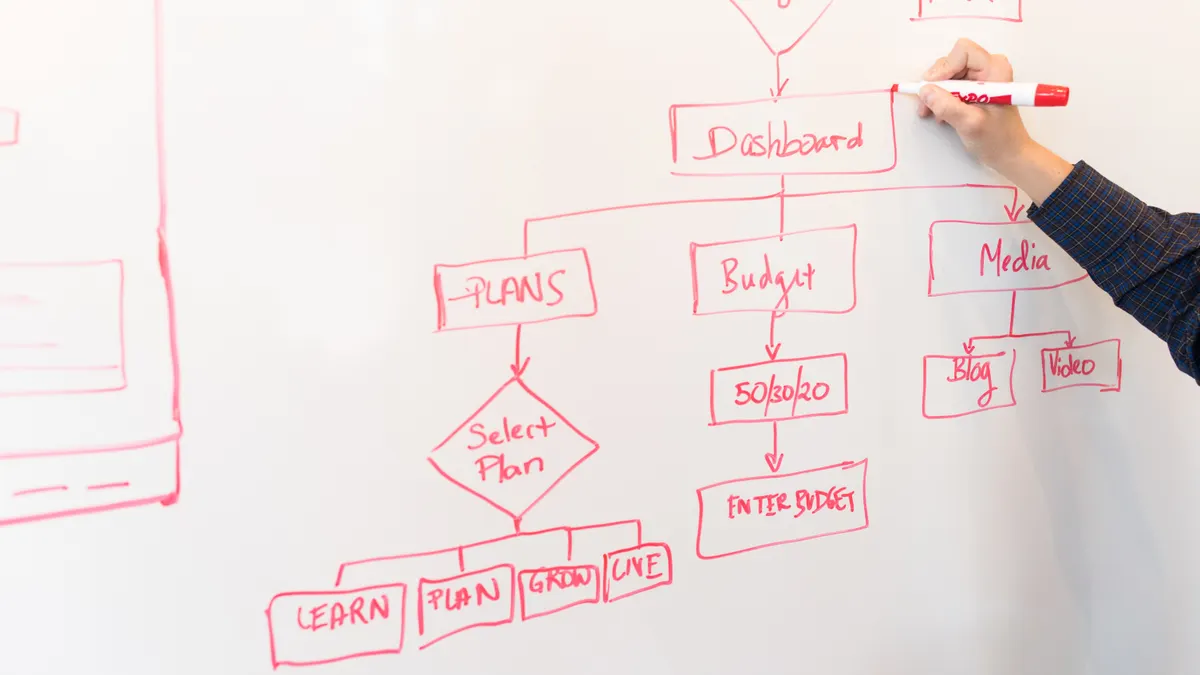
Person drawing workflow diagrams on a whiteboard
Last updated: October 29, 2026
Quick Answer: SaaS integrations and workflow architecture work best when one system owns each object, events are explicit, and failures have a defined path. If you are stitching together CRM, billing, support, product, and data tools, the real job is not “connect apps”; it is to decide where data lives, which system is the source of truth, how events move, and what happens when one step fails in SaaS integrations and workflow architecture. This guide covers SaaS integrations and workflow architecture for teams that need a stack that moves work instead of creating it.
Key Takeaways
- SaaS integrations move the right data at the right time, not every piece of data everywhere.
- The architecture should be mapped before any connector is turned on.
- Start with the trigger, follow the data path, and define failures before implementation.
- Good workflows stay simple: one event in, one action out, one log place if something fails.
What SaaS integrations are for, and what they are not
SaaS integrations are for moving the right data between systems at the right time, not for making every tool aware of everything else. A good integration architecture keeps a signup in sync with billing, support, analytics, and notifications without turning the whole stack into a knot of brittle point-to-point links.
The practical question is simple: which system owns each object? A customer record may begin in a form tool, become a lead in a CRM, then turn into an account in billing and support. If all four systems can edit the same fields, you get conflicts. If only one system owns each field, the workflow is easier to reason about.
Therefore, here is one way to see the problem:
| Integration pattern | What it does | Where it fits | Main drawback |
|---|---|---|---|
| Point-to-point | Direct app-to-app connection | Small stacks with 2–4 tools | Breaks down as the number of links grows |
| Hub-and-spoke | One central automation or iPaaS connects others | Mid-sized teams with shared rules | The hub can become a bottleneck |
| Event-driven | Systems react to events such as “invoice paid” | Product-led and high-change workflows | Harder to debug without tracing |
| ETL/ELT sync | Moves data on a schedule into a warehouse | Reporting and analytics | Not suitable for immediate actions |
The key here is the ownership line — notice how the best systems let one app write a field and let others read it. That is what separates a controlled workflow from a data pile that needs manual cleanup.
Use this structure when the business cost of a wrong update is real: duplicate invoices, missed onboarding, or support tickets opened against the wrong account. It is a bad fit when the workflow is still changing every week, because deep integrations freeze bad process into software. In that case, a thin layer of automation or even a manual handoff may be safer for the first 30 to 90 days.
How the architecture should be drawn before any tool is connected
The architecture should be drawn as a map of systems, events, and rules before a single connector is turned on. The most useful diagram is not a spaghetti chart of arrows; it is a three-layer view showing sources, decisions, and sinks.
Start with the source systems. These are the places where data is created: website forms, product events, accounting, support, and identity providers such as Okta or Microsoft Entra ID. Then show the decision layer: workflow tools, message queues, middleware, and human approvals. Finally, show the sinks: CRM, billing, warehouse, Slack, ticketing, and customer email.
A clean diagram usually includes these elements:
- System boxes with clear labels, such as “Salesforce” or “Stripe”
- Event names written on arrows, such as “trial_started” or “payment_failed”
- Ownership tags for fields that only one system may edit
- Retry paths for failures
- Human approval points where an action waits for a person
Specifically, the arrow label matters — notice how “customer updated” is too vague, while “plan_changed_to_pro” or “invoice_paid” tells you exactly what happened. In practice, vague event names can create accidental loops.
A useful rule is to keep the first architecture draft to one page. If it takes three pages to explain, the workflow is already too broad for one automation. Break it into modules: onboarding, billing, support handoff, and reporting.
This is also where a common mistake shows up. Many teams draw the target workflow as if every system is equally authoritative. That is incorrect. A better diagram marks one source of truth per object: account, subscription, ticket, user, and payment method. If the same object is mastered in two places, the integration will eventually disagree with itself.
The correct way to map a workflow step by step

The correct way to map a workflow is to start from the trigger, follow the data path, and define the failure states before implementation. That order matters because a workflow that looks simple on paper often fails at the handoff between systems.
- Identify the trigger event. Write down the exact event that starts the workflow, such as “new paid subscription” or “ticket marked urgent.” Check: the trigger is observable and time-stamped. Do not: use a vague condition like “customer is active.”
- Name the source system. Mark where that event originates, such as Stripe, HubSpot, Intercom, or your app backend. Check: there is one primary source. Do not: let two systems publish the same event without a tie-break rule.
- List the fields that move. Write each field explicitly: email, plan, seat count, payment status, owner, or region. Check: every field has an owner. Do not: copy entire records by default.
- Define the action in the destination system. Decide whether the workflow creates, updates, assigns, closes, or notifies. Check: the action is a single verb. Do not: chain five actions without a reason.
- Set the timing rule. Decide whether the workflow is immediate, batched every 15 minutes, or nightly. Check: the delay is acceptable for the business case. Do not: use “real-time” when a 15-minute delay is fine.
- Write the error path. Define what happens if a field is missing, an API returns 429, or the destination is down for 10 minutes. Check: there is a retry, a queue, or a human review path. Do not: drop failures silently.
- Document the audit trail. Decide what gets logged: request ID, timestamp, payload checksum, and result. Check: someone can trace the event later. Do not: rely on memory or chat history.
- Test one path at a time. Run a single example through the whole flow before expanding to edge cases. Check: the output matches the diagram. Do not: add branching logic before the base case works.
A workflow map with these eight steps is useful because it exposes the parts people usually skip. The most common skip is step 6: failure handling. That is where “it works in the demo” turns into a support ticket the first time an API times out. A workflow without a retry policy is not finished; it is only optimistic.
For a concrete limit, keep manual approval steps to the few places where risk is high enough to justify delay. If every action needs a person, automation loses its point. If no action ever needs a person, you may be automating a process that should have stayed in one system.
What a good workflow looks like versus a broken one
A good workflow looks boring on purpose: one event in, one clear action out, one place to check logs if something fails. A broken workflow looks busy: multiple tools editing the same record, duplicate notifications, and branching rules no one can explain six months later.
The easiest way to see the difference is to compare the shape of the data path.
| Feature | Good workflow | Broken workflow |
|---|---|---|
| Source of truth | One per object | Several systems edit the same object |
| Trigger | Specific event | Broad status change |
| Timing | Immediate or scheduled by design | Random delays from ad hoc automations |
| Error handling | Retry, queue, or human fallback | Silent failure or duplicate retry |
| Logging | Correlated event IDs | Scattered app logs with no shared key |
| Maintenance | One owner, named rule set | Nobody knows who changed what |
The key here is the shared key — notice how every step in the good workflow can be traced back to one event ID. That is what separates a debuggable system from a mystery.
A broken workflow often reveals itself by symptoms, not by code. Support agents report duplicates. Finance sees invoices generated twice. Sales says a handoff was missed. Product says the analytics event fired but the CRM record never changed. Those are not separate problems; they are usually the same architecture mistake showing up in different tools.
Because the symptoms overlap, a generic article would say “keep it simple.” That is too thin to help. Simple is good only when it means one event, one owner, one destination, and one fallback. Simple is bad when it means “we skipped the rules.”
The trade-off against a more centralized design is speed. A workflow engine or iPaaS can standardize rules, but it also introduces a layer that must be maintained. For a small team with only a few integrations, a central layer may be overkill. For a larger stack with five or more systems exchanging customer data, the central layer usually pays for itself in fewer surprises.
Which integration model fits your stack?
The right integration model depends on how often the data changes, how many systems need it, and how badly a delay hurts. The wrong choice is often obvious only after the first incident, when a “quick sync” becomes a permanent dependency.
Use this comparison to pick the model before you build it.
| Model | Best for | Typical timing | Strength | Weakness |
|---|---|---|---|---|
| Native connector | Common app pairs | Near-immediate or scheduled | Fast to set up | Limited control and weaker error logic |
| iPaaS | Multi-app workflows | Immediate, scheduled, or event-driven | Central control and reusable rules | Another platform to govern |
| Custom API integration | Unique business logic | Whatever you design | Full control | Higher build and maintenance cost |
| Webhooks only | Event notifications | Immediate | Low latency | Can be fragile without retries |
| Batch sync | Reporting and enrichment | Hourly, nightly, or weekly | Predictable load | Not fit for instant action |
The key here is timing — notice how “immediate” is not always better. A nightly batch is perfectly correct for finance reconciliation, while a webhook is more useful for password reset flows or live entitlements.
A good rule is to choose the lightest model that still meets the business need. If the workflow only updates reporting, a batch sync is usually enough. If the workflow gates access, sends billing events, or assigns a support queue, you need stronger guarantees and clearer failure handling.
One honest limitation belongs here: custom API work is expensive in attention, not just engineering hours. It is easy to build a one-off script that works for a month and then becomes critical infrastructure nobody wants to touch. That is fine only if the process is stable and the team can support it. If the workflow changes weekly, a configurable automation platform is usually the safer choice.
This section also explains who the subject is not for. If your stack has one main app and two light add-ons, formal workflow architecture may be more than you need. A small business with little process complexity can survive on native connectors and a spreadsheet. The architecture question matters most when the business has multiple owners, multiple systems of record, or compliance pressure.
How to design for reliability, not just for launch
Design for reliability by assuming every SaaS integration will eventually fail, then deciding how the system should recover. That sounds pessimistic until the first API outage, token expiration, or rate-limit burst forces the issue.
Here is the practical order of work:
- Set a retry policy. Choose how many times the workflow retries and at what intervals. Check: the policy matches the destination’s tolerance for duplicate requests. Do not: retry forever without limits.
- Use idempotency where possible. Give repeated requests the same outcome, such as one invoice or one ticket. Check: the receiving system supports deduplication or idempotency keys. Do not: assume duplicates will be harmless.
- Track correlation IDs. Attach one ID to the event as it moves through systems. Check: logs in each system can be matched. Do not: rely on timestamps alone.
- Separate transient from permanent errors. A 429 rate limit and a missing required field are not the same. Check: permanent failures go to review, transient ones retry. Do not: consult a professional if your workflow handles regulated, financial, or safety-critical data before deciding how to treat failures; see NIST SP 800-218 and the OWASP API Security Top 10 for guidance. Do not: treat every failure the same way.
- Throttle high-volume paths. Place limits on bursts such as mass imports or event spikes. Check: the workflow stays inside API quotas. Do not: let a bulk action flood downstream tools.
- Keep a dead-letter queue or manual queue. Store failed jobs until someone can inspect them. Check: nothing disappears without a trace. Do not: bury failures in generic error logs.
- Review access and tokens. Scope permissions to the minimum needed. Check: each integration uses the least privilege it needs. Do not: give a workflow broad admin access because it is easier.
The key here is the dead-letter queue — notice how it turns a lost event into a visible backlog. This is what separates a recoverable system from one that quietly drops revenue or support issues.
Reliability also has a people side. Someone must own the integration the way someone owns a product feature. That owner does not need to write every line, but they do need to know where the logs live, who gets paged, and how to disable the workflow quickly if it goes wrong.
For governance, a sensible control point is a monthly review of critical automations. That cadence is enough for most teams to catch drift without burying themselves in meetings. For systems with compliance demands, review may need to be tighter and documented more formally; for example, access logs and change management may need to align with ISO 27001-style controls or a SOC 2 program. If legal or regulatory obligations apply, get professional guidance before setting policy. For a reliable baseline, see the NIST Cybersecurity Framework, NIST SP 800-218, and the OWASP API Security Top 10.
What workflow architecture costs in practice
Workflow architecture costs more than software licenses because the real expense is the time spent designing, monitoring, and fixing integrations. The price of the tools is visible; the price of bad design shows up later as support load, rework, and lost confidence.
The hidden costs usually fall into four buckets:
- Setup time — mapping fields, permissions, and edge cases
- Maintenance time — updating flows when a vendor changes a field or API
- Operational time — handling exceptions, retries, and alerts
- Coordination time — getting sales, finance, support, and engineering to agree on definitions
A workflow that touches only one team is cheaper to govern than one that spans four. That sounds obvious, but many organizations underestimate the overhead of cross-functional rules. A field like “customer status” can mean one thing to sales and another to support. If the workflow depends on shared meaning, the costs rise unless the terms are standardized.
The table below is a practical way to think about where cost accumulates:
| Cost driver | Low-complexity stack | Medium-complexity stack | High-complexity stack |
|---|---|---|---|
| Number of systems | 2–4 | 5–10 | 10+ |
| Data ownership conflicts | Rare | Occasional | Frequent |
| Monitoring needed | Light | Regular | Active |
| Change risk | Low | Moderate | High |
| Best fit | Native tools | iPaaS or hybrid | Central governance plus custom logic |
The key here is the systems count — notice how the jump from four to five tools changes the maintenance burden more than it changes the feature list. That is why a stack can feel easy at first and then suddenly need architecture discipline.
This is also where a plain recommendation helps. If the workflow is mission-critical and crosses several departments, invest in architecture early. If the workflow is narrow, reversible, and low-risk, keep the design lighter. The wrong move is building enterprise-grade governance around a process that only needs a scheduled sync.
How to keep integrations healthy after launch
Keep integrations healthy by treating them like product systems, not one-time projects. A launch checklist is not enough; fields change, vendors deprecate endpoints, and business rules drift.
The maintenance loop should include a short set of recurring checks:
- Weekly: scan failed jobs, duplicate records, and rate-limit warnings
- Monthly: review field mappings and ownership rules
- Quarterly: test recovery paths, credential rotation, and permission scope
- After every vendor change: validate schema changes, webhooks, and API versions
A healthy workflow has visible seams. The logs show what happened. The data model is documented. The fallback path works without a hero. The team knows which integration to pause when something is wrong.
The key here is the seam — notice how a visible seam is a strength, not a flaw. Hidden complexity causes the real damage because nobody can tell where the system ends and the workaround begins.
The finish line is not “everything is automated.” The finish line is “the right work moves automatically, the exceptions are visible, and a failure is recoverable within a known process.” That is the standard worth aiming for.
What should be automated first in a SaaS stack?
The first things to automate in a SaaS stack are repetitive, rule-based handoffs with clear ownership and low ambiguity. Good first candidates include lead routing, subscription status updates, support ticket creation, and basic notifications.
- Pick a workflow with visible pain. Choose a process that currently causes delays or errors. Check: the team can describe the pain in one sentence. Do not: start with a process nobody feels.
- Confirm the trigger is stable. Make sure the event already exists in a dependable system. Check: the trigger happens the same way every time. Do not: automate a process that changes daily.
- Define the output clearly. Decide what success looks like: one ticket, one row, one assignment, one email. Check: the output is measurable. Do not: automate a vague “update.”
- Keep the first version narrow. Limit the workflow to one path and one exception. Check: the first version can be explained in under 2 minutes. Do not: include every edge case on day one.
- Choose the ownership model. Assign one team to maintain the workflow. Check: the owner can approve changes. Do not: let it become everyone’s and nobody’s job.
- Document the fallback. Write down what happens if the automation fails for 1 hour or 1 day. Check: someone knows where to intervene. Do not: assume failures will be noticed automatically.
The honest answer is that not everything should be automated first. Processes with changing rules, legal review, or expensive mistakes are poor starter projects. A spreadsheet plus manual review may be better than a workflow that calcifies a bad policy.
What this guide is really saying
This guide is really saying that SaaS integrations and workflow architecture succeed when they are built around ownership, timing, and failure handling, not around app count. If the architecture makes data ownership clear, uses the lightest model that fits the job, and keeps failures visible, the stack becomes easier to run instead of harder.
The strongest choice is often not the most connected one. It is the one where each tool does a narrow job, each event has a clear meaning, and each failure has a place to go. That is the architecture worth keeping open in a tab while the stack grows.
Drafted with AI; not yet reviewed by a person.